Hey!
So, few days ago I've shared a little snippet of MAXScript I wrote to help me automated some stuff and few people actually found it useful so I guess I'll share another script that I wrote that help me creating highpoly faster!
After modeling hard surface stuff for a number of years, I've pick up things from here and there and also through trial and error and I've come up with my preference workflow. It's not a new or breakthrough method or anything like that, it's just a collection of actions combined into a neat UI with some utilities to help along the way, again this was created tailor made for my preference workflow. If this does help anyone else, I'll be really grateful for that :)
Basically it'll apply a Chamfer Modifier and a TurboSmooth Modifier to your mesh. Nothing new. Sure you can add them manually but clicking the setting and property numbers can be time consuming, it'll took few seconds if you do this once during a modeling session, but could add up to hours if you need to do it hundreds of times a session. My usual workflow involving iteration process between mesh modeling and preview it with the Chamfer + TurboSmooth Modifier added to the stack, so it will speedup my workflow quite a bit!
UI screenshot:
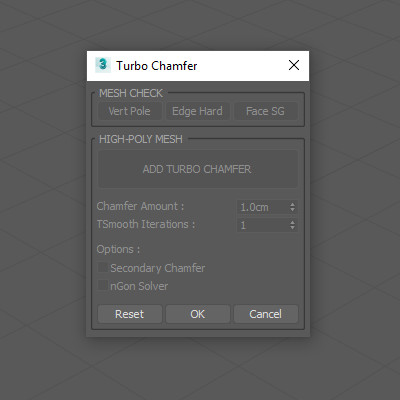
MESH CHECK functions:
- Vert Pole: To check and select your verts that's on a hard edges and connected to more then 4 edges.
- Edge Hard: Toggle the Display Hard Edges just to make sure you get the hard edges on the right places!
- Face SG: To check and select all faces that doesn't have Smoothing Group assigned to them.
HIGH-POLY MESH functions:
- Secondary Chamfer: Add a secondary micro Chamfer on top of your primary Chamfer.
- nGon Solver: Run the nGon Solver script by Miklós Gábor's toolset, RapidTools*
Here's a gif I've recorded to show how it works:
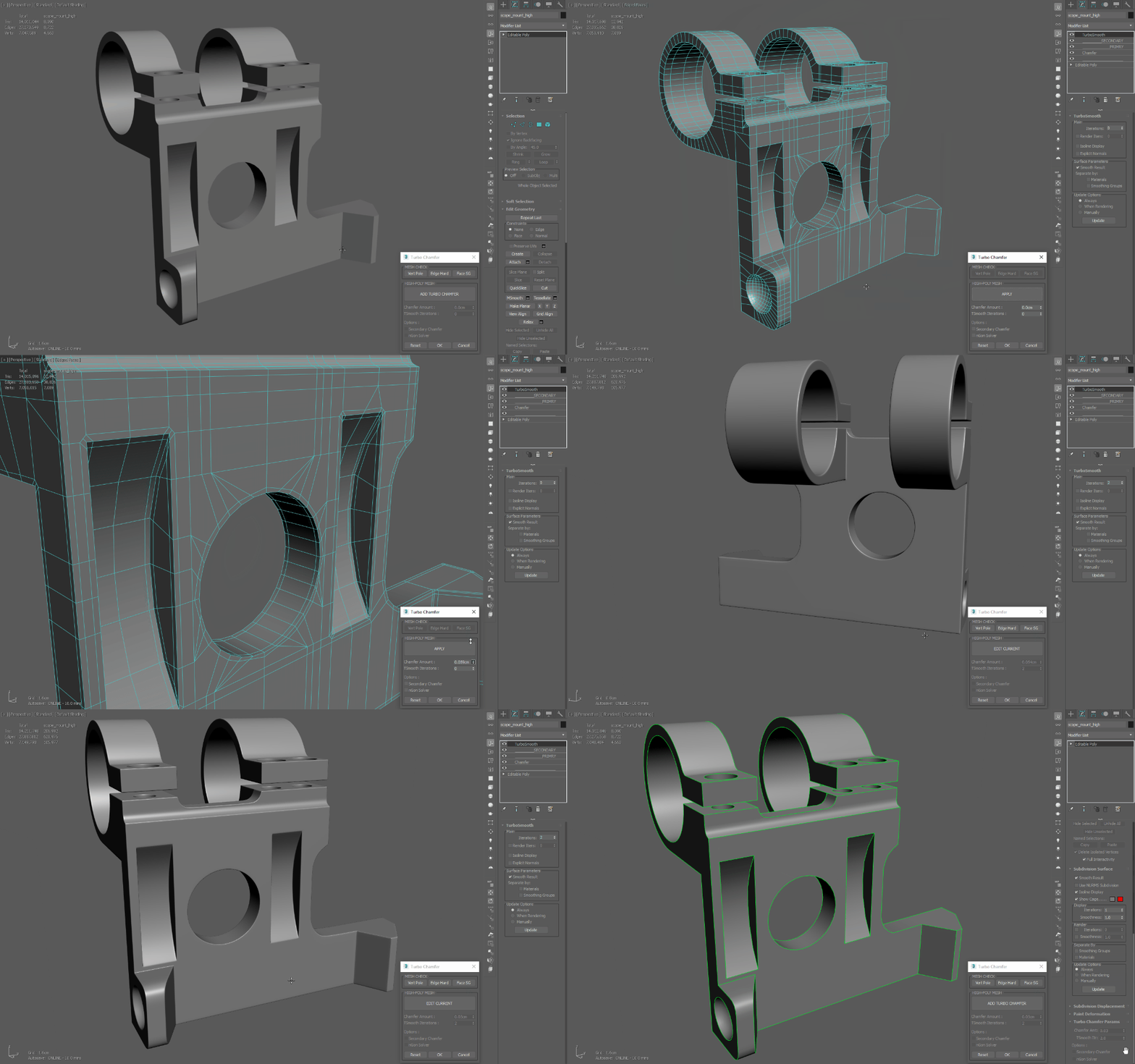
The main point to remember is you need to properly set your Smoothing Group as to where you want your hard edges to be chamfered (the Edge Hard and Face SG utility comes in handy for this). And also don't afraid of nGons! This workflow most of the time prefer an nGon rather then a vert pole that fall on hard edges, Max just don't know what to do with those vert pole, but then again it's all based on case by case basis, some other times the vert pole that selected by the MESH CHECK functions does, in fact, works correctly compared to an nGon solution. I can't really show you what works what not on what situation, use your experience to make the best judgement!
Another thing is that the setting for each mesh (Chamfer amount, TurboSmooth iteration, etc) are saved to that particular mesh via the custom attributes, meaning after you LMB Reset (NOT RMB Reset, that will clear up everything) the custom attributes will remember and auto set the same amount back for that particular mesh, as seen on the last part of the gif animation, so you don't need to remember what setting best for which mesh.
TAKE NOTE: When using Turbo Chamfer, before you click Apply, Max will lock your selection so that weird thing's won't happen. You can manually unlock the selection if you want to.
Enough words and explanation!
You can grab the script >>> HERE <<<
Please leave a comment and let me know what you think, things to add, change, optimize, questions or whenever you found any crash or error. I've been using it for quite a long time and haven't found any issues with it, BUT if you lose some works because of the script, well I won't take any responsibility for it :P
Save your work often people, it's 3ds Max we're talking about here!
* RapidTools not required to run TurboChamfer, it's an additional feature that can be helpful sometimes.
** 3ds Max 2017+
Feel free to share the script with your friends, but please link back to the Gumroad page to download. Thanks!
Hope you'll find it useful!